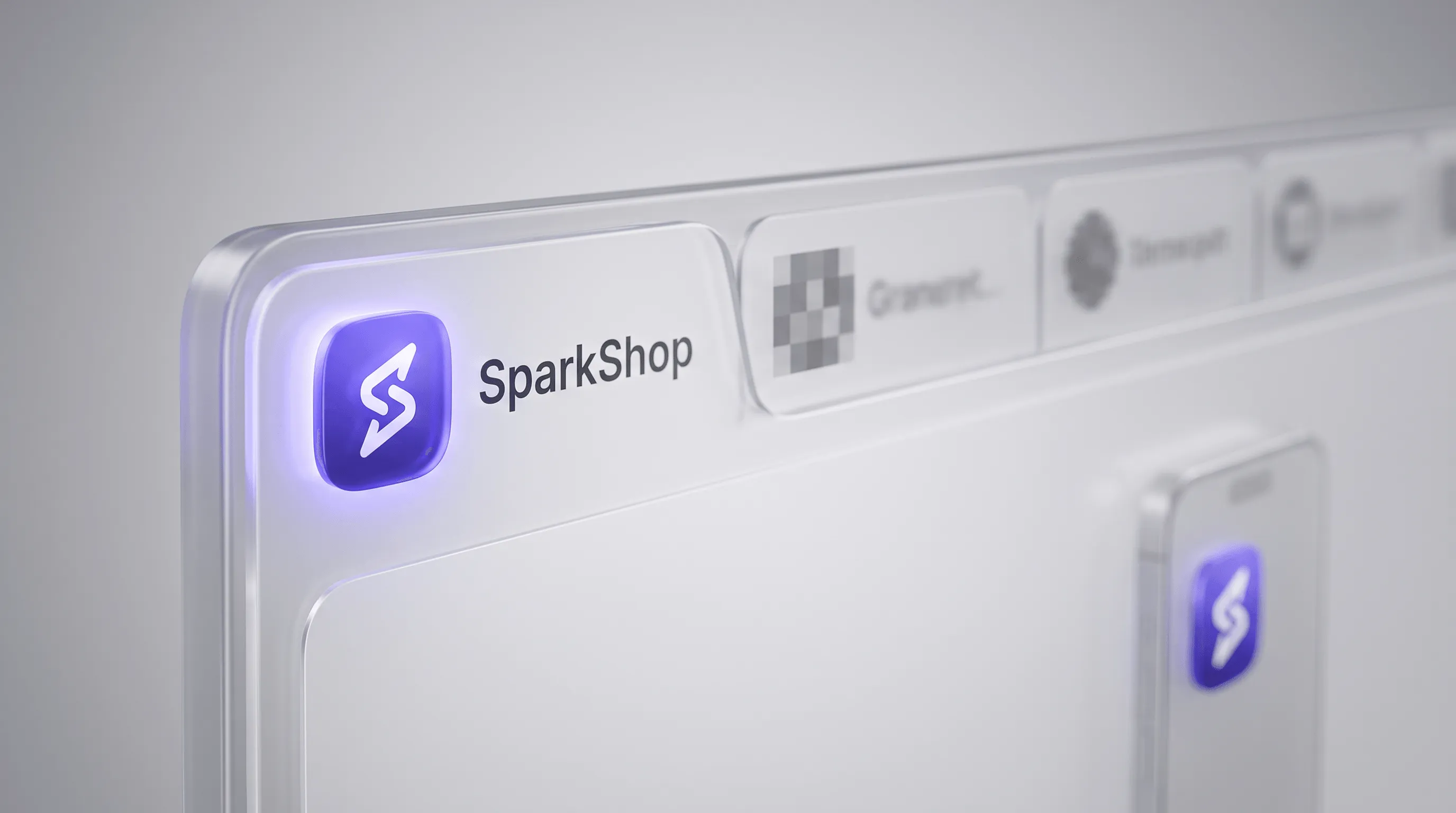
A Shopify favicon is the small icon for your store that shows up in the browser tab, in bookmarks, and sometimes in Google search results. You set it up under Online Store → Themes → Customize → Theme settings, in a few minutes and without any code. The real work isn’t the upload itself, it’s getting the resolution and format right, and knowing the handful of places where Shopify behaves differently than most guides assume: Checkout, customer accounts, Google search results, and multiple market domains.
This guide covers both sides: the quick standard path for anyone who just wants to upload an icon, and the technical details that decide whether your favicon actually looks right in the places most store owners never think to check.
What a favicon actually does for your store
A favicon is more than decoration. With several tabs open, it’s often the only visual cue customers use to find your store again. In Google search results, it sits right next to your page title, and a generic gray placeholder icon simply looks less trustworthy there than a branded one, especially next to competitors who’ve already gotten this detail right.
For Shopify stores specifically, there’s a technical wrinkle: the browser tab icon is just one of several icon variants a store theoretically needs, including a larger icon for the iPhone home screen. As covered in detail below, Shopify’s default feature only actually delivers the browser tab variant.
The right Shopify favicon size: where Shopify’s default feature stops
Shopify’s own guide gives a simple recommendation: the ideal image size is 16×16 or 32×32 pixels, and larger images are automatically resized to 32×32 pixels on upload. A look at the code behind Dawn, Shopify’s own reference theme, shows why: Dawn hardcodes the favicon in the <head> with image_url: width: 32, height: 32, regardless of how large the file you upload actually is.
That’s fine for the browser tab. It becomes a problem in two places:
| Use case | What a 32×32 px favicon delivers |
|---|---|
| Browser tab | Sufficient, that’s the exact target size. |
| Google search results | Google explicitly recommends resolutions above 48×48 px; a 32×32 px icon can look blurry there. |
| iPhone home screen (Apple Touch Icon) | Not covered, Dawn doesn’t ship an Apple Touch Icon. |
| Android home screen | Not covered, for the same reason. |
This isn’t a theoretical problem: a Shopify merchant filed exactly this gap as a feature request in the Dawn repository in 2023, citing Google’s size recommendation and the missing Apple Touch Icon support. Shopify closed the request without adding the feature. If you want more than a sharp tab icon, you need either a third-party theme with its own favicon logic, or some additional theme code, more on that below.
The right file format: PNG, ICO, or JPG?
Shopify accepts PNG, ICO, and JPG for the standard upload. In practice, there’s a clear favorite:
- PNG with a transparent background is the gold standard. Your icon automatically adapts to light and dark browser surfaces instead of showing up as a white square.
- ICO has been supported by every browser for decades and is technically safe, but offers no advantage over PNG anymore.
- JPG works, but doesn’t support transparency. Fine for a favicon with a solid or white background, a worse choice for a cutout logo.
- SVG can’t be uploaded through the standard upload field in theme settings. It’s only possible through a theme code change, more on that below.
Step by step: uploading a favicon in Shopify
- Open your admin. Go to Online Store → Themes.
- Customize your theme. Click “Customize” on your currently published theme.
- Open theme settings. Click the gear icon in the bottom-left corner for the general theme settings.
- Find the favicon section. Depending on the theme, it’s labeled “Favicon” or listed under “Logo.”
- Upload your image. Select your prepared file, PNG with a transparent background. Shopify will scale it to 32×32 px for the browser tab regardless.
- Save. Without clicking “Save” in the top right, the change is lost.
- Check in an incognito window. Open your store in a private browser window to see the result without an old browser cache getting in the way.
Checkout and customer accounts: the limit almost nobody knows about
If that bothers you on a smaller plan, you have two realistic options: use a checkout-branding app from the Shopify App Store that specifically closes this gap, or deliberately set the issue aside until a move to Shopify Plus is already on the table.
Check your own favicon
Before you upload a file, you can check it right here against the key requirements from Shopify and Google:
Shopify Favicon Checker
Upload your favicon and check in seconds whether it meets Shopify's and Google's requirements. The file never leaves your browser.
Advanced: a favicon that adapts to dark mode
Modern browsers support SVG favicons that automatically adapt to the user’s dark mode via a CSS media query, a technique barely covered anywhere in the Shopify context. A single SVG icon can ship a light or dark variant depending on the system setting.
For most stores, the effort for this refinement is small relative to the payoff, but for brands with a heavily design-driven, actively maintained custom theme, it can still be worth it as one more detail carried through consistently.
Troubleshooting: why isn’t my favicon showing up correctly?
| Symptom | Likely cause | Fix |
|---|---|---|
| Old or no icon in the tab | Browser cache | Hard refresh (Ctrl/Cmd + Shift + R) or test in an incognito window |
| Change isn’t applied after saving | Theme overrides the favicon via a hardcoded tag in theme.liquid | Search theme.liquid for a hardcoded <link rel="icon"> |
| Icon looks pixelated | Source file uploaded too small | Re-upload a master file of at least 180×180 px |
| Icon missing or blurry in Google search results | Shopify’s default favicon is only 32×32 px, below Google’s recommendation, or Google hasn’t recrawled the page yet | Add a larger icon via theme code (see above), then use URL Inspection in Google Search Console |
| Icon missing on Checkout or customer accounts | Not on Shopify Plus, Branding API not set up | Use a checkout-branding app or deliberately set the issue aside |
| Icon blurry or missing on the iPhone home screen | Dawn and many other themes don’t ship an Apple Touch Icon regardless of the uploaded size | Manually add <link rel="apple-touch-icon"> with a 180×180 px file in theme.liquid |
| Icon wrong or outdated on an additional market domain | Each domain caches its favicon separately, the theme wasn’t republished there | Republish the theme for all market domains, clear the cache of any CDN/proxy in front of it |
Thinking about branding beyond just the favicon?
We handle theme polish, checkout branding, and technical SEO for your Shopify store end to end, so details like this one don't get left behind.
Favicon audit checklist
Shopify Favicon Checklist
Every step for a favicon that looks correct on every device and in every search surface
Preparation
- Master file created at at least 180×180 px 512×512 px is better
- PNG format with transparent background chosen
- Design checked for legibility at a 16×16 px test size
Upload & setup
- Favicon uploaded in theme settings
- Change saved and checked in an incognito window
Advanced check
- Apple Touch Icon added via theme code, if desired Dawn and many themes don't ship one automatically
- Larger favicon (at least 48×48 px) added via theme code for Google
- Apple Touch Icon appearance checked on the iPhone home screen
- Appearance in Google search results checked after recrawling Google Search Console → URL Inspection
- Appearance on Checkout and customer accounts checked (Shopify Plus only)
Multiple markets
- Favicon checked individually on every market domain or locale
- Cache of any CDN or DNS proxy cleared, if applicable
Frequently asked questions about Shopify favicons
For the browser tab, Shopify's standard size of 32×32 pixels is enough, since any uploaded file gets scaled down to that anyway. Still, keep your icon saved at at least 512 pixels, because a larger, Google-ready favicon or an Apple Touch Icon requires additional theme code and a high-resolution source file for that.
PNG with a transparent background. It automatically adapts to light and dark surfaces. ICO also works but offers no advantage over PNG. JPG doesn't support transparency.
Usually the browser cache, a hard refresh or an incognito window resolves it in most cases. If the problem persists, a hardcoded icon tag in the theme code may be overriding the setting.
Only on Shopify Plus, through the checkoutBrandingUpsert mutation of the GraphQL Admin API. On Basic, Shopify, and Advanced plans, Shopify's default icon stays visible on Checkout, only a checkout-branding app from the App Store can change that.
Not through the standard upload field in theme settings. An SVG favicon, for example for automatic dark mode support, can only be implemented through a manual change to the theme code.
The most common cause is Shopify's default favicon size of 32×32 pixels, which is below Google's recommended 48×48 pixels. Adding a larger icon via theme code fixes it. It's also possible Google hasn't recrawled the page yet, which you can trigger via URL Inspection in Google Search Console.
Yes, if you want your store to look right when saved to an iPhone home screen. Shopify's default theme Dawn doesn't generate an Apple Touch Icon automatically from your uploaded favicon file. A 180×180 pixel icon can only be added through an extra link tag in the theme code.
The setting itself applies store-wide, but browsers cache the favicon per domain individually. With multiple market domains through Shopify Markets, check the appearance separately on each domain after a change.
That depends on your domain's crawl frequency and can't be stated as a fixed number, often anywhere from a few days to a few weeks. URL Inspection in Google Search Console can be used to request a recrawl.
No, uploading a favicon through theme settings is included free on every Shopify plan. Costs only arise if you add a separate app for checkout branding.